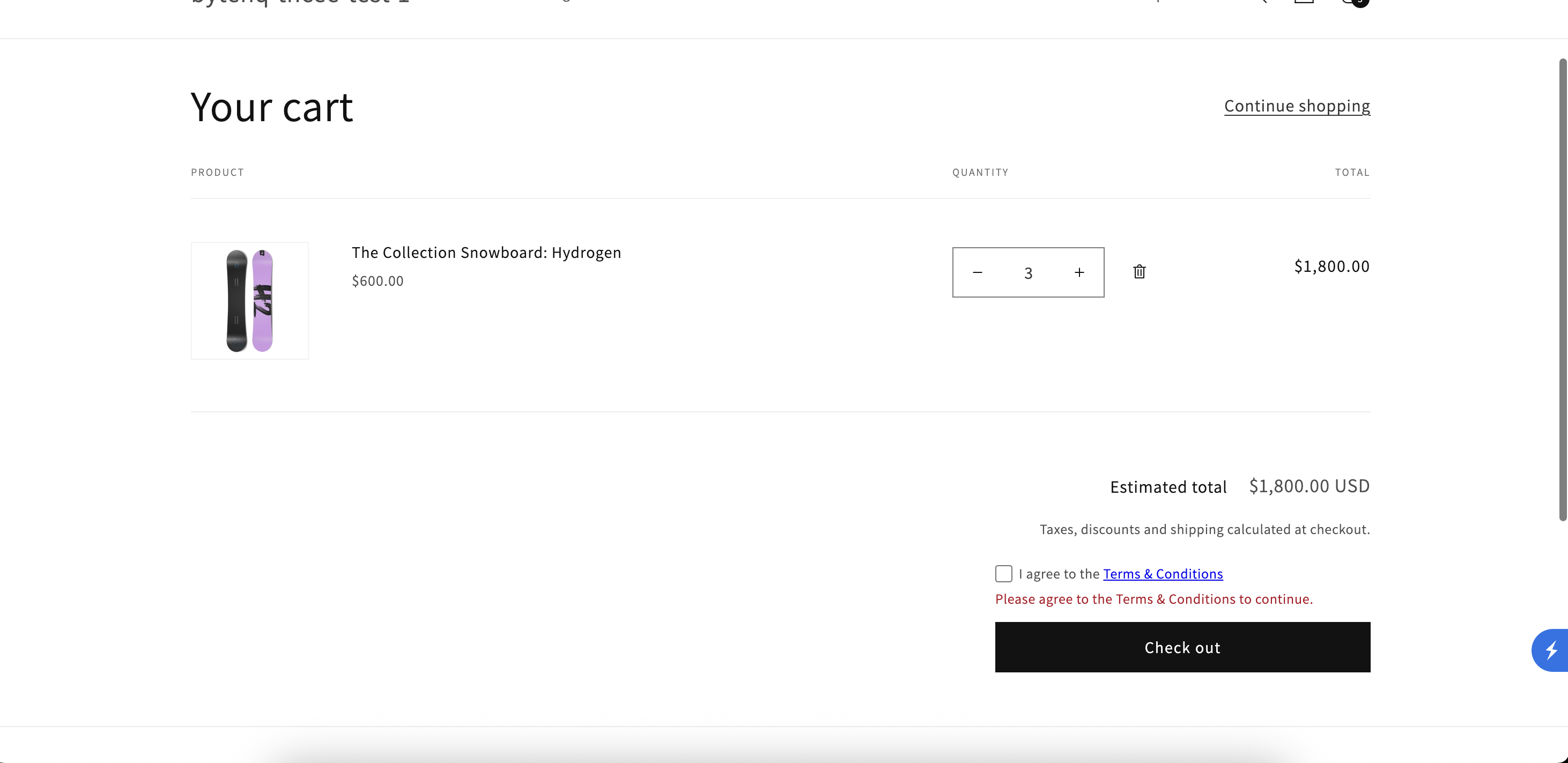
Cart page
The checkbox appears by the standard Checkout button. Checkout is held until the shopper agrees.
 Contact support
TNCEE / MERCHANT GUIDE
Follow the setup for your Shopify plan, see what shoppers experience, and learn where each completed order’s consent is recorded.
TNCEE / WALKTHROUGH
01 / NON-PLUS STORE SETUP
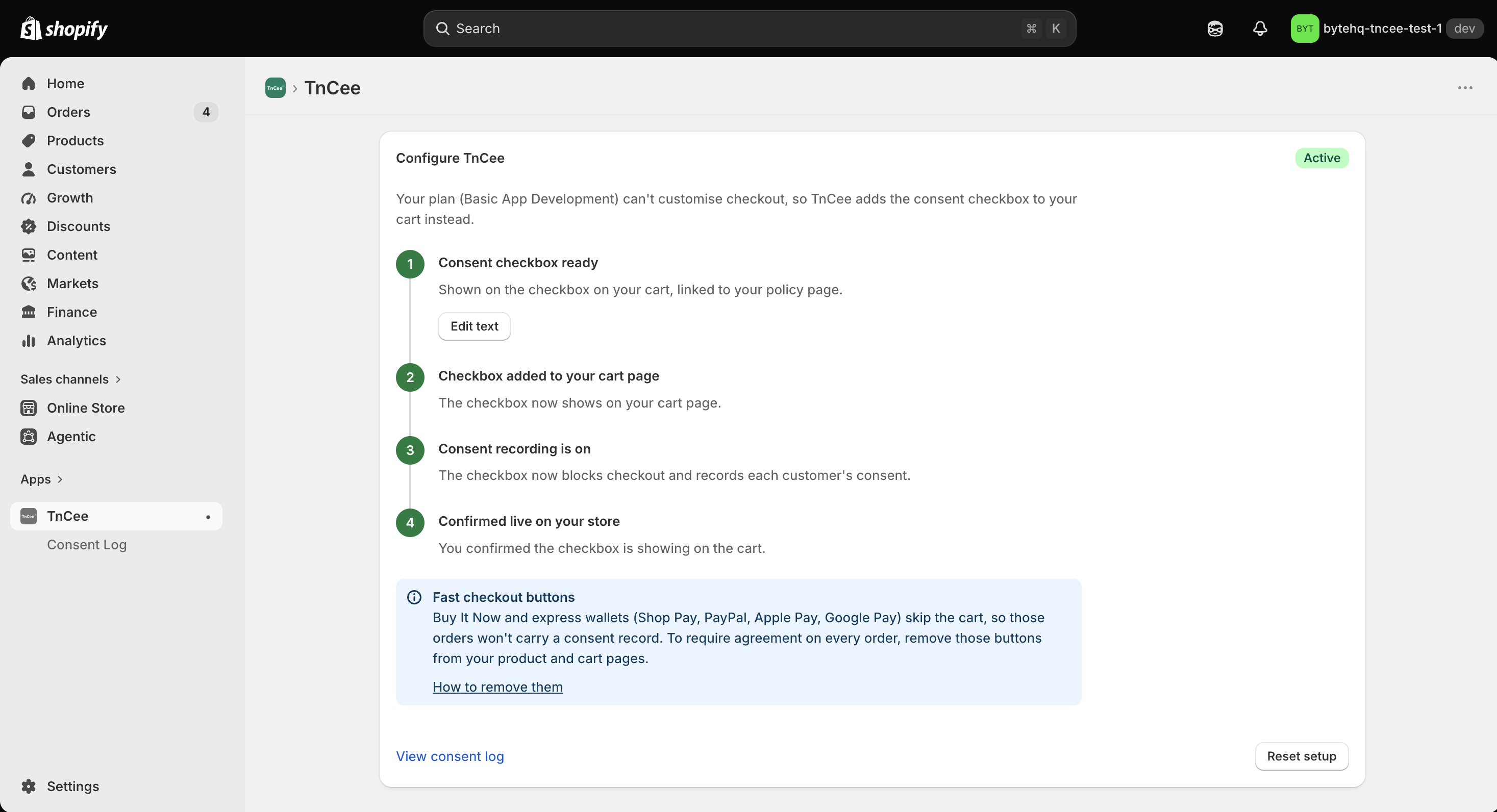
In TnCee, configure the checkbox text and Terms link. Then open your theme editor and add the app block to the cart:
The cart checkbox block requires an Online Store 2.0 theme. If your current theme is vintage and doesn't support app blocks, switch to an Online Store 2.0 theme before continuing.
02 / NON-PLUS BUYER EXPERIENCE
TnCee supports the cart page, cart drawer, cart popup, and accelerated checkout entry points shown here.
The checkbox appears by the standard Checkout button. Checkout is held until the shopper agrees.
Choosing checkout in a drawer opens the consent prompt. The shopper can continue after agreeing.
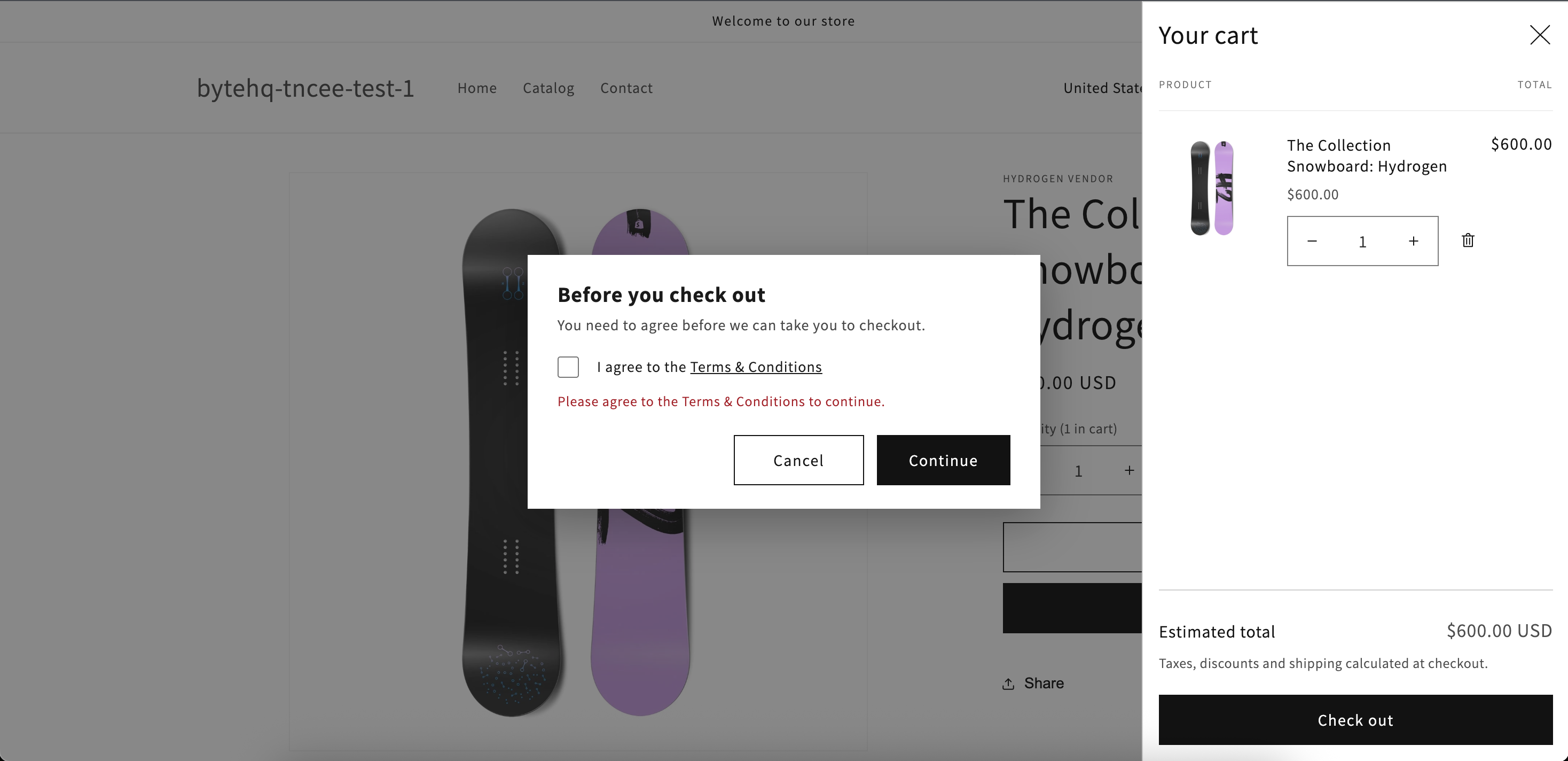
Popup-cart checkout also asks for agreement before continuing.
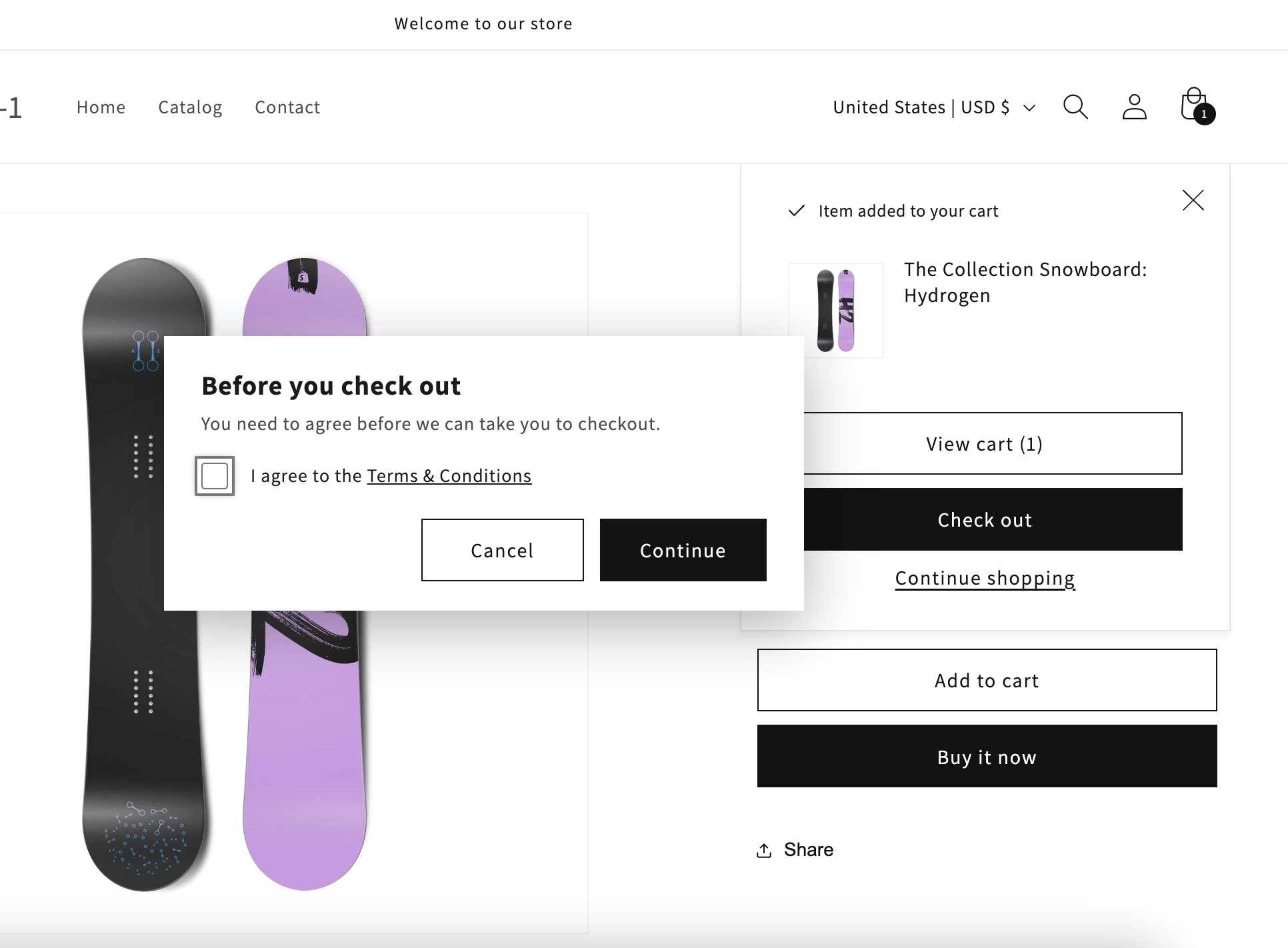
Buy It Now asks for consent before the accelerated checkout is opened.
The same consent prompt protects Buy It Now when the cart opens as a popup.
03 / CONSENT RECORD
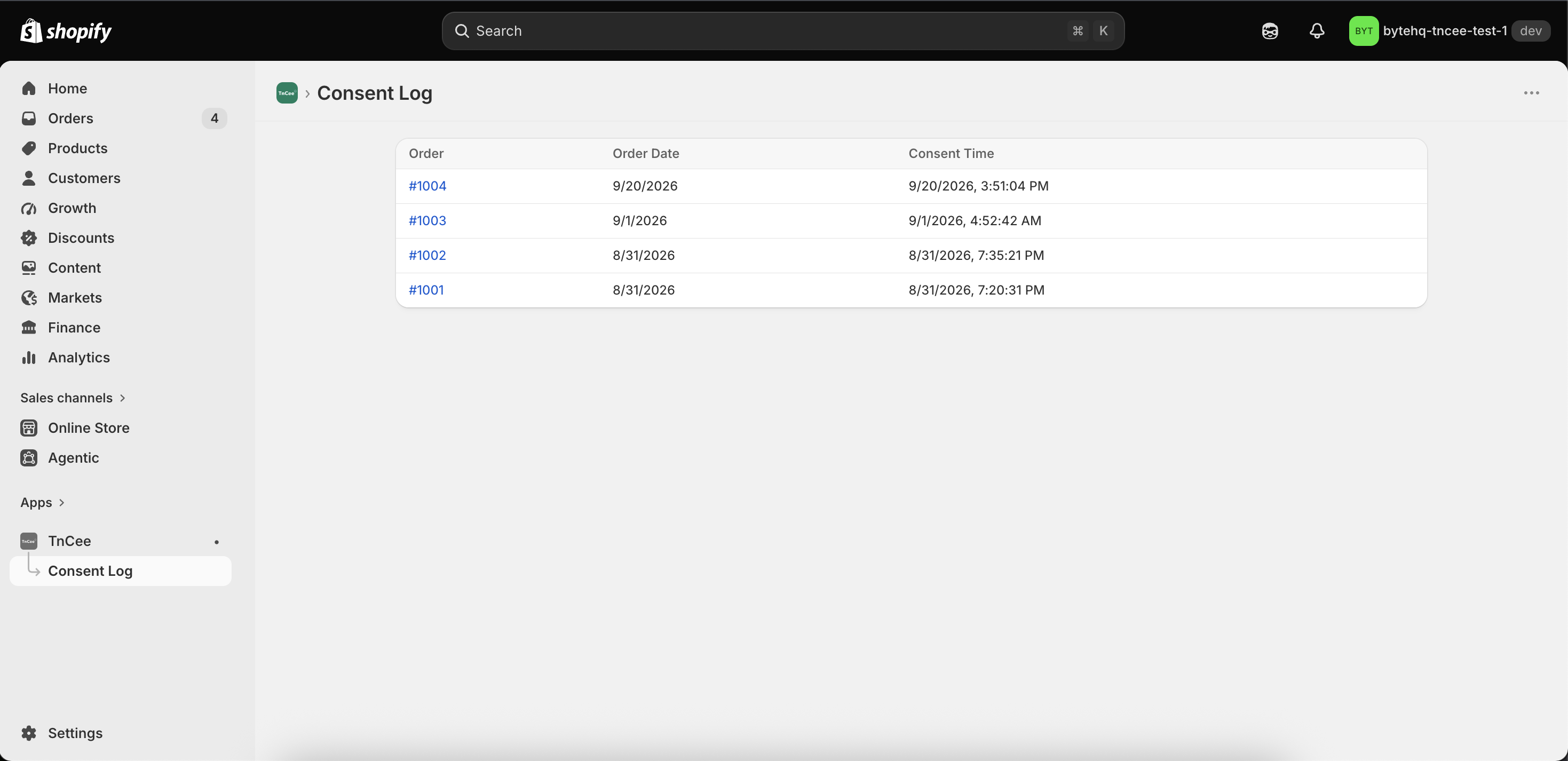
After a completed order, open TnCee → Consent Log in Shopify admin. Review the order and its recorded agreement details.
04 / SHOPIFY PLUS STORE SETUP
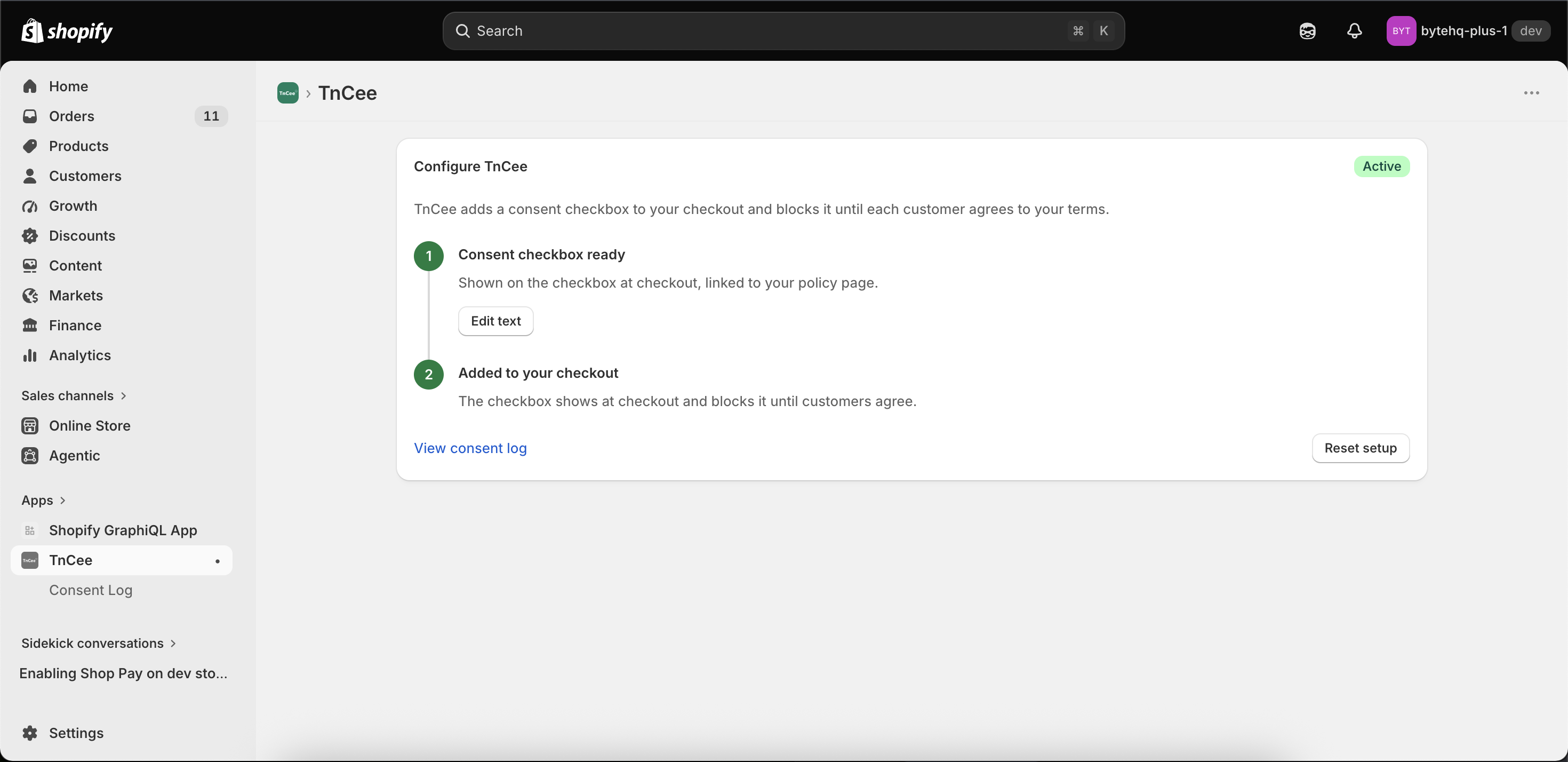
05 / SHOPIFY PLUS BUYER EXPERIENCE
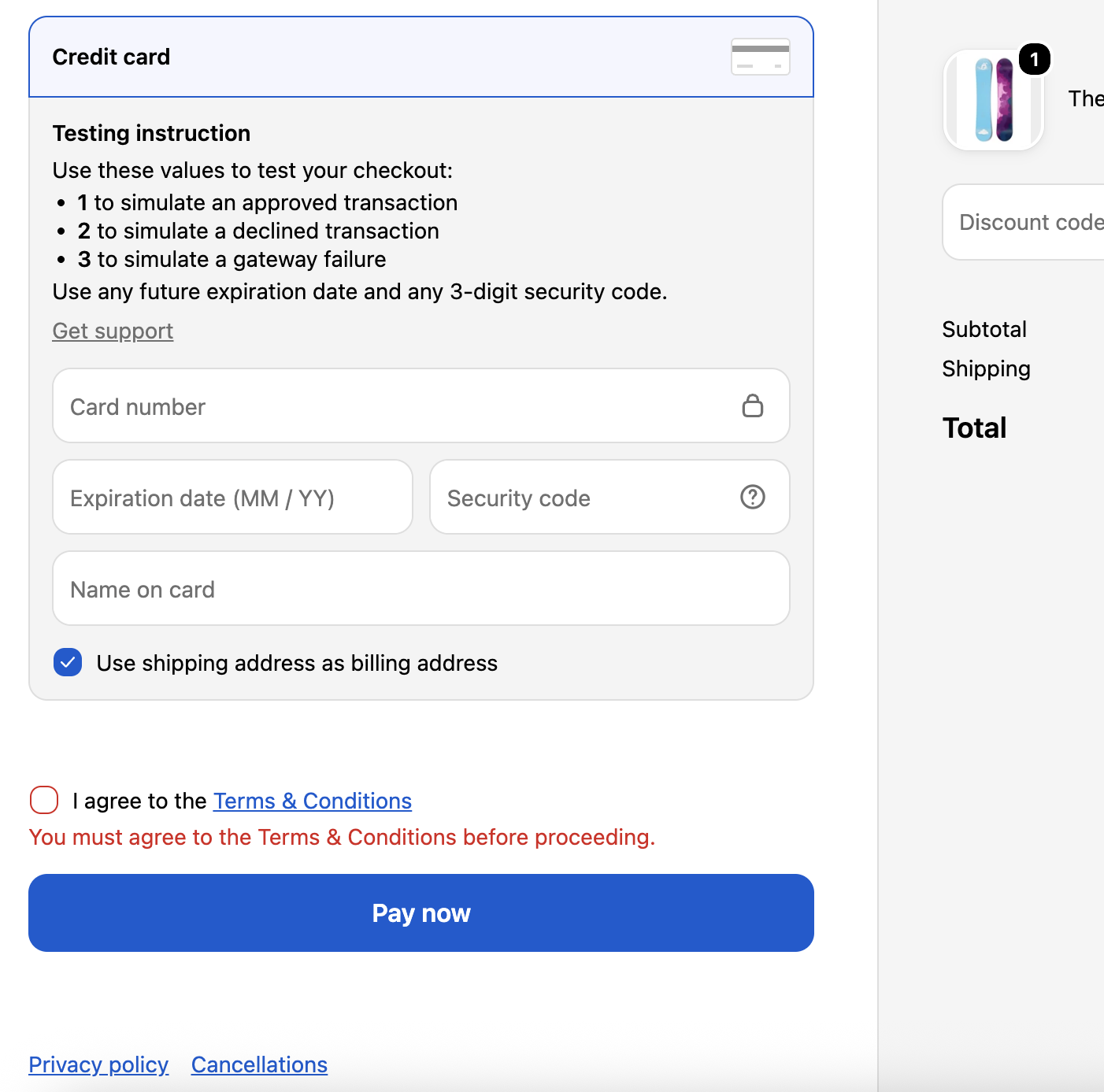
The checkbox appears inside Shopify checkout. The shopper must agree before continuing with Pay Now. When the order completes, review its consent entry in TnCee’s Consent Log.